


How to apply, step by step
Three short guides with pictures of every screen: become a new member, connect your existing membership, or request a service. Everything works on your phone.
Guide 1
Apply for new membership
About 15 minutes on your phone. Keep your CNIC, NTN certificate and business documents ready as photos or PDFs.
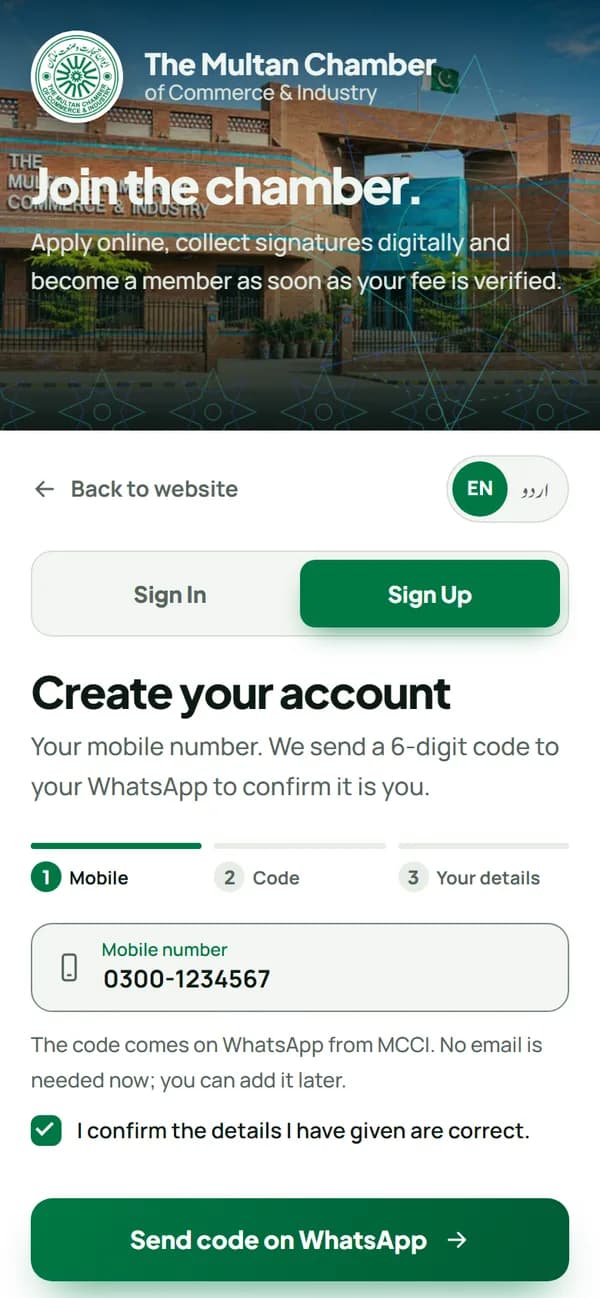
Step 1
Create your account with your mobile number
Open Sign Up, type your mobile number, tick the box and press "Send code on WhatsApp". No email is needed now.
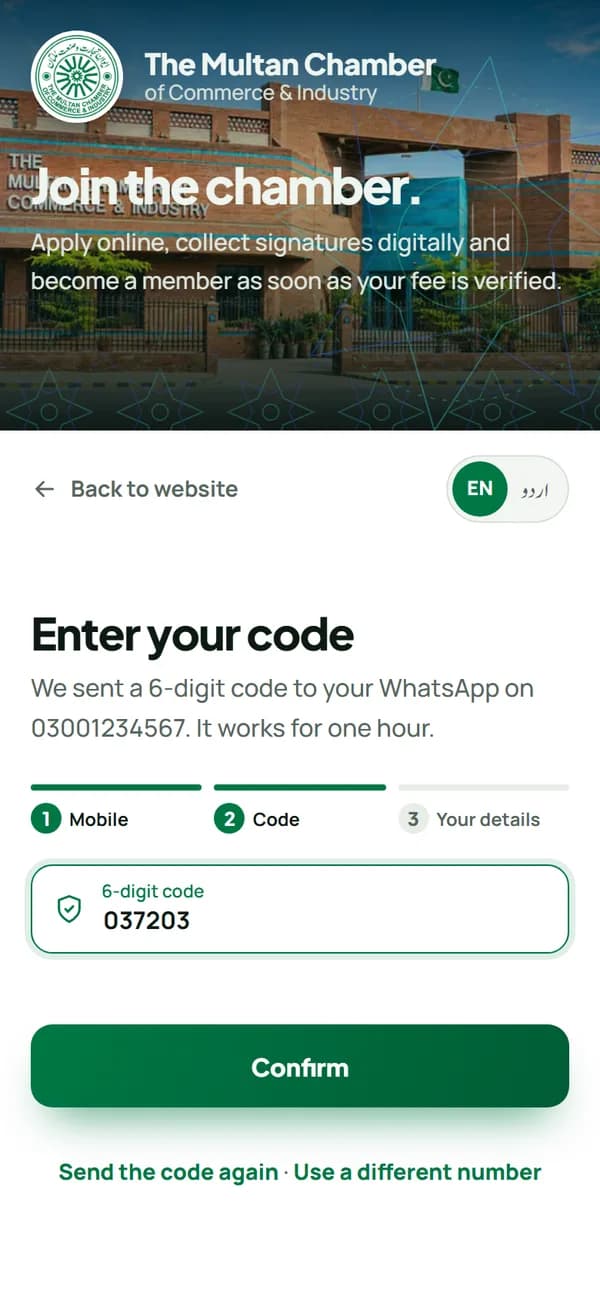
Step 2
Type the 6-digit code from WhatsApp
MCCI sends the code to your WhatsApp. No WhatsApp on this number? Press "Get the code by email instead".
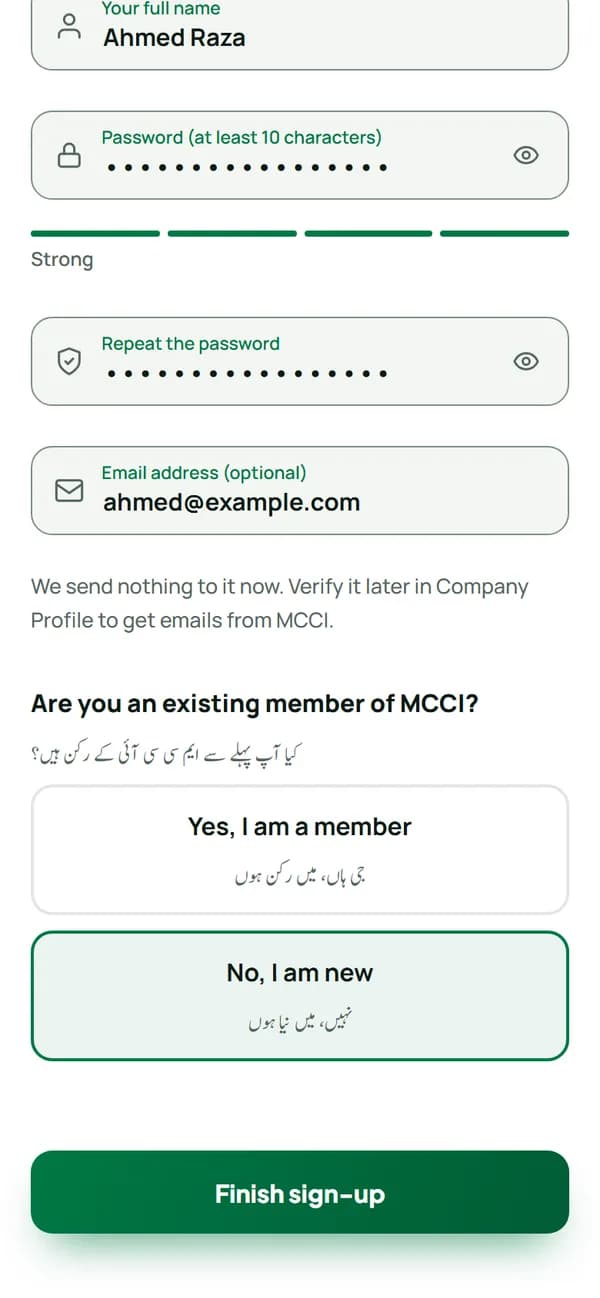
Step 3
Your name and a password, then "No, I am new"
Type your full name and a password you will remember. Adding an email is optional. Choose "No, I am new".
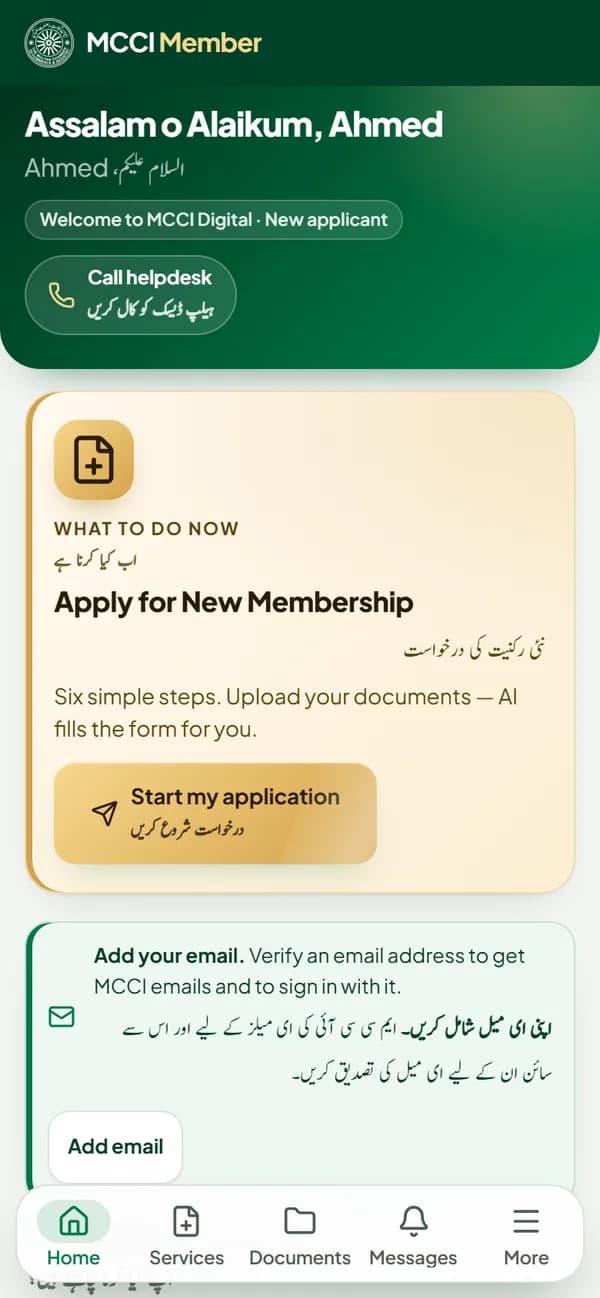
Step 4
Start your application
Your portal opens. The green "What to do now" card shows the next step: press "Start my application".
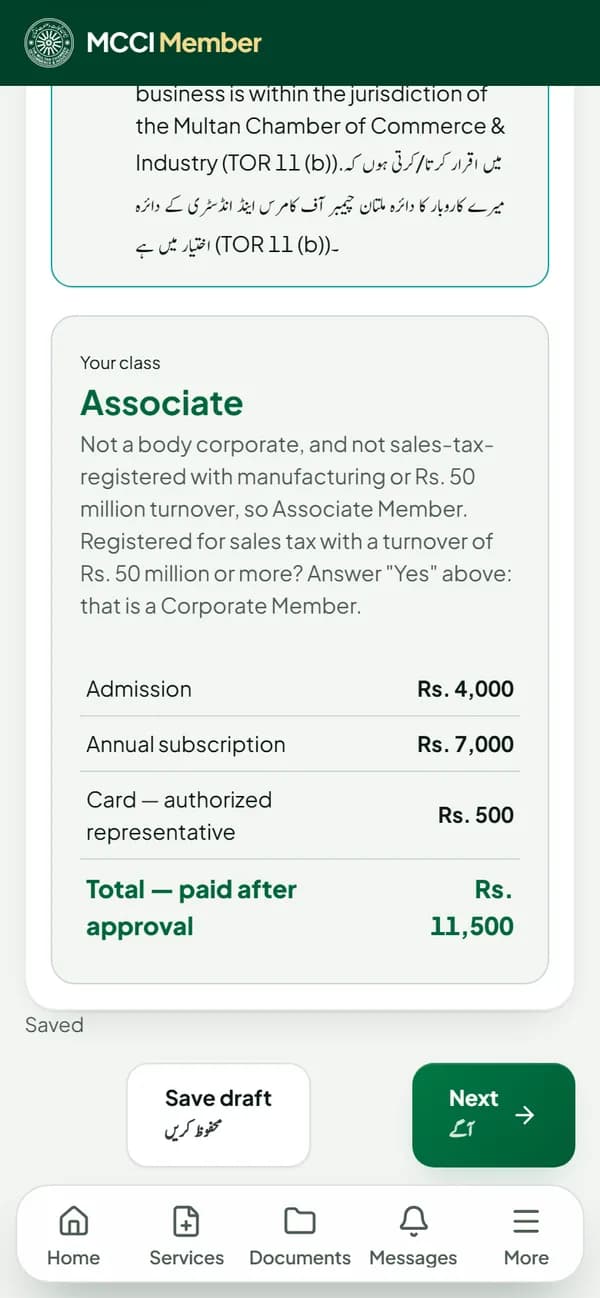
Step 5
Choose your type of business
Answer a few simple questions. The portal shows your membership class (Corporate or Associate) and the fee straight away.
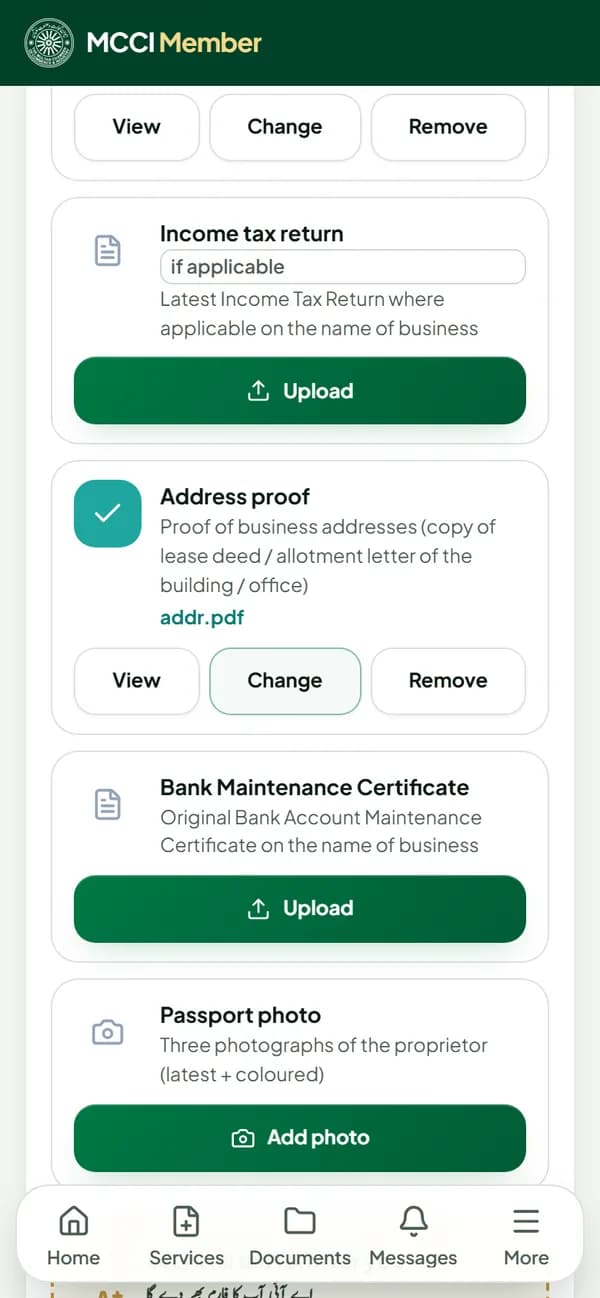
Step 6
Upload your documents
Take a clear photo or upload a PDF of each document on the list. Only the documents for your type of business are asked.
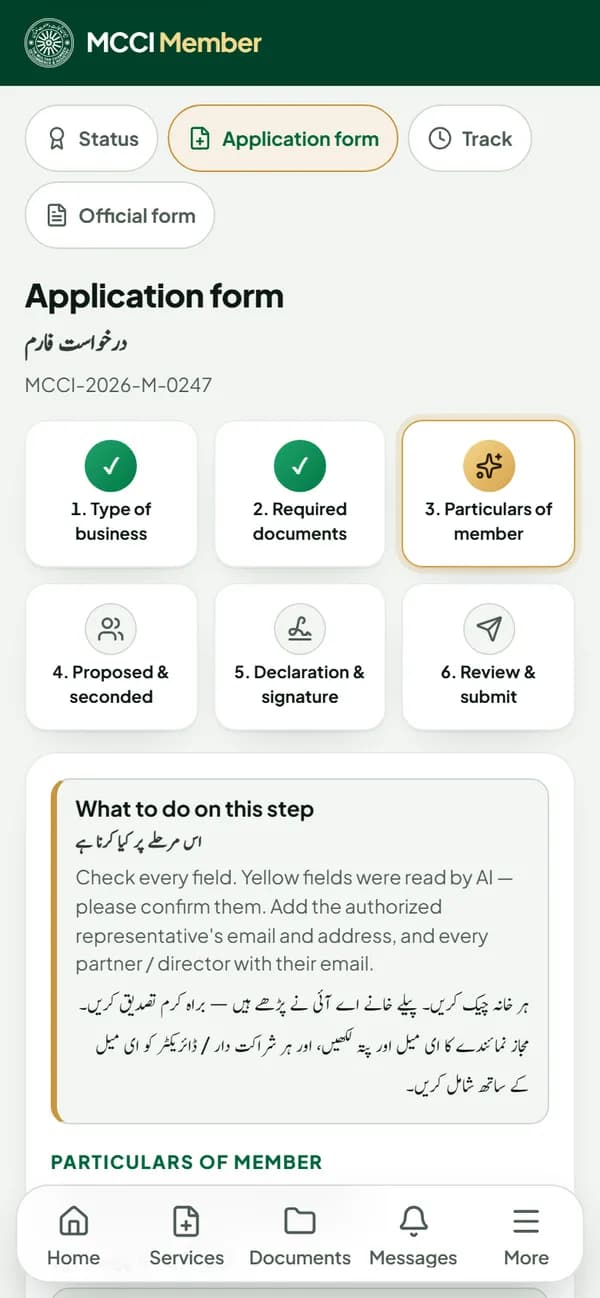
Step 7
AI fills the form, you check it
Press "Read with AI": the form is filled from your documents. Check every field; anything AI was unsure of is highlighted.
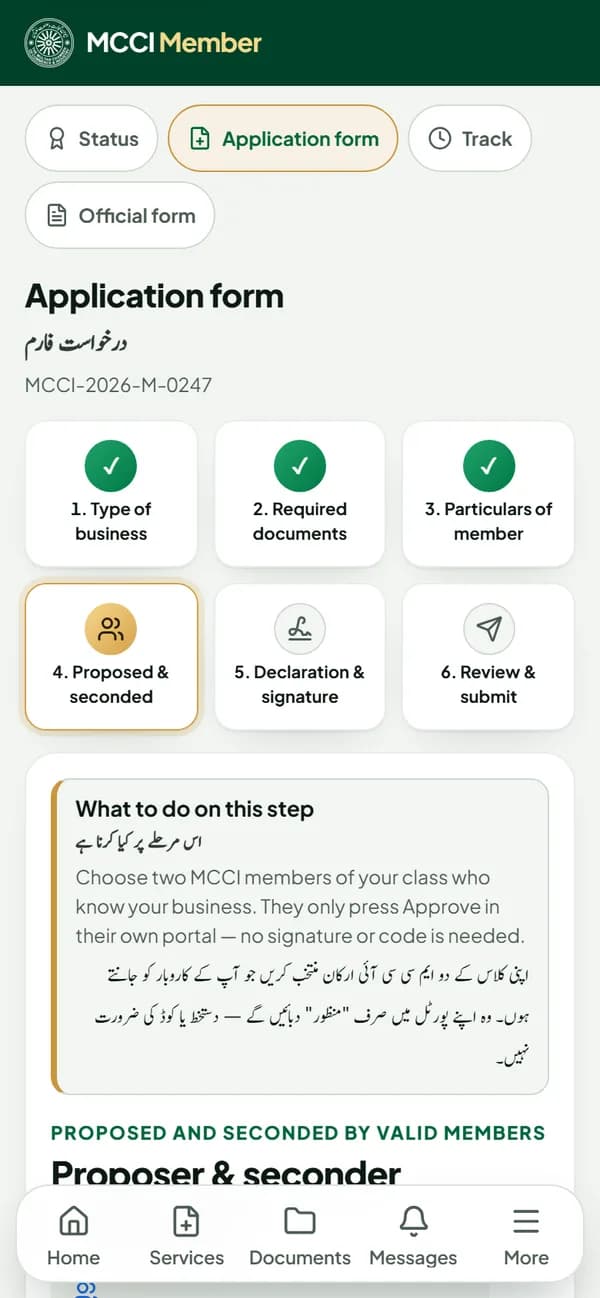
Step 8
Proposer and seconder
Two existing MCCI members confirm your application in their own portal. Ask them, and you can see when each one confirms.
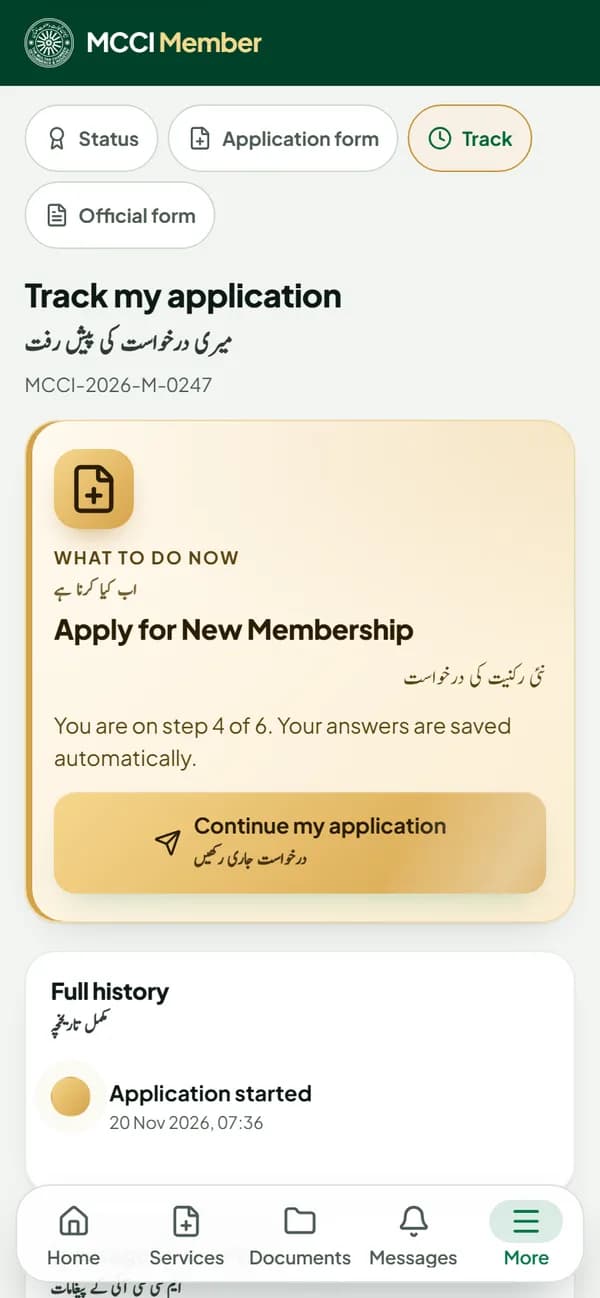
Step 9
Sign, declare and submit, then track it
Upload a photo of your signature, tick the declarations and submit. Track every stage of your application in "My Membership".
Step 10
Approval, fee and certificate
After the committee approves, your fee voucher appears in Payments. Pay at the bank or the MCCI counter and upload the receipt. Your membership number and certificate follow.
Which documents do I need, and what is the fee?
See classes, fees and documentsGuide 2
Already an MCCI member? Connect your account
Your membership is already in MCCI's register. Make an account once, and MCCI links it to your membership.
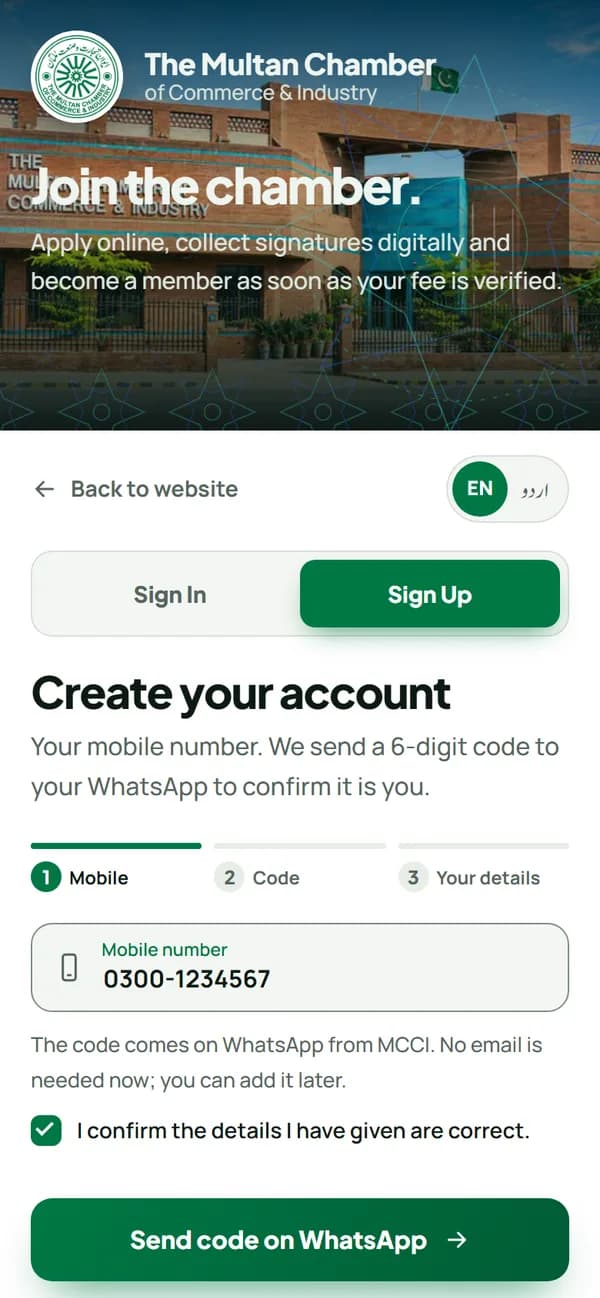
Step 1
Create your account with your mobile number
Exactly as for a new member: open Sign Up, type your mobile number and press "Send code on WhatsApp".
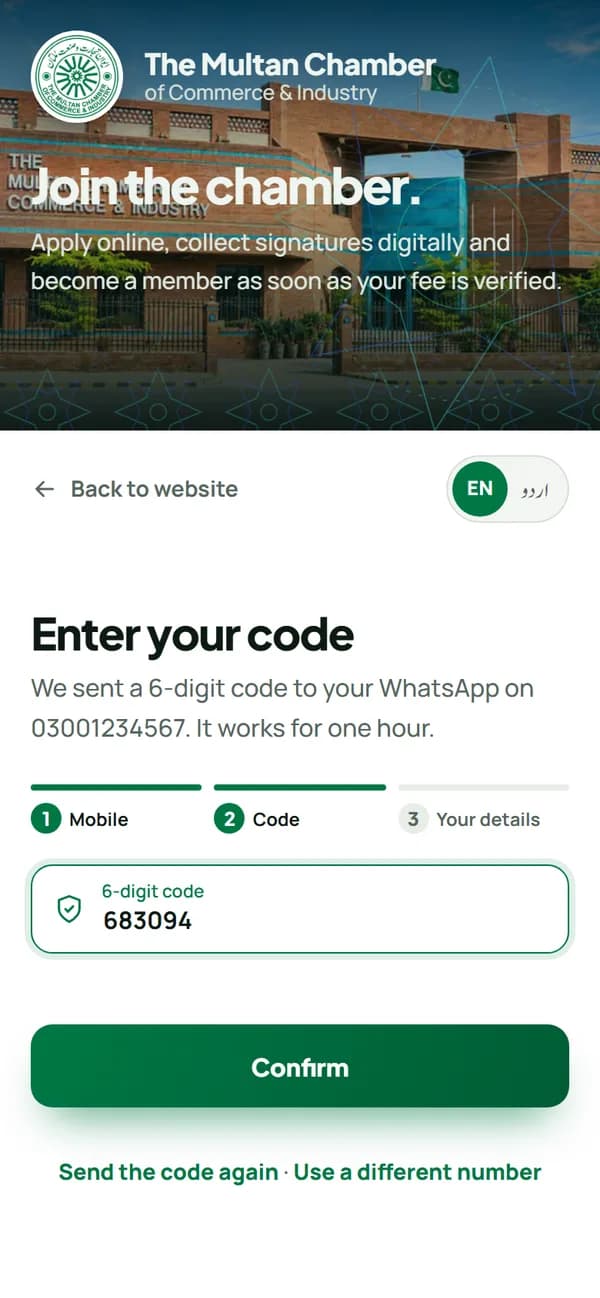
Step 2
Type the 6-digit code
Type the code MCCI sent to your WhatsApp (or to your email, if you chose email).
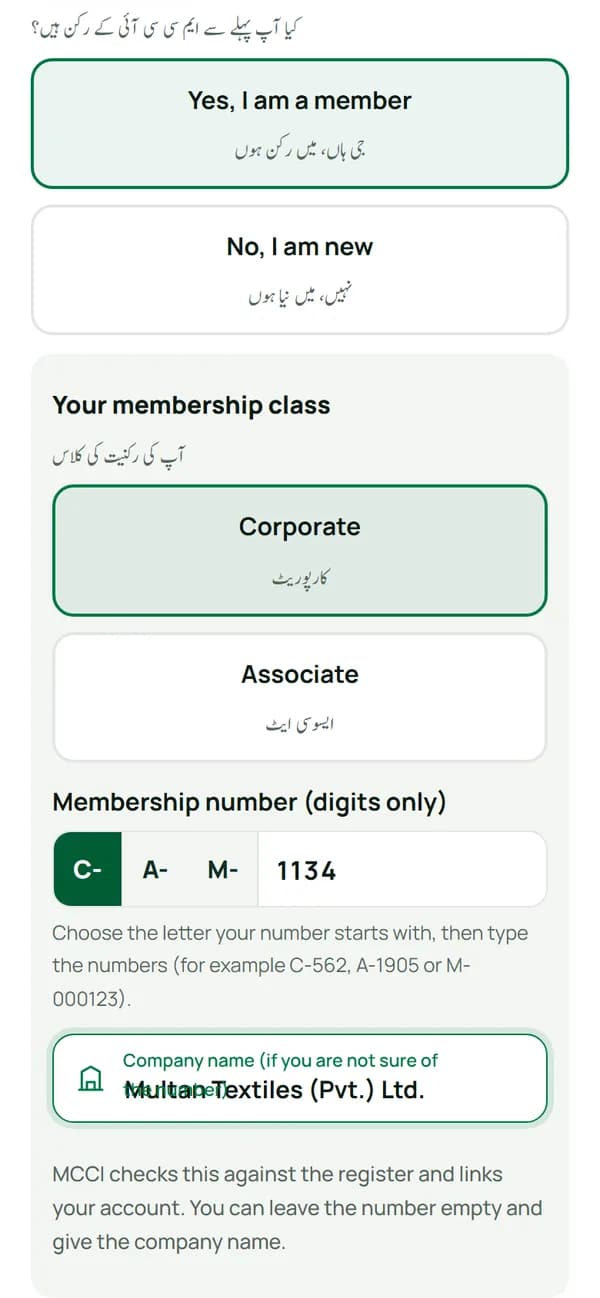
Step 3
Choose "Yes, I am a member"
Choose your class (Corporate or Associate), the letter your number starts with (C-, A- or M-) and type the digits. Not sure of the number? Type your company name instead.
Step 4
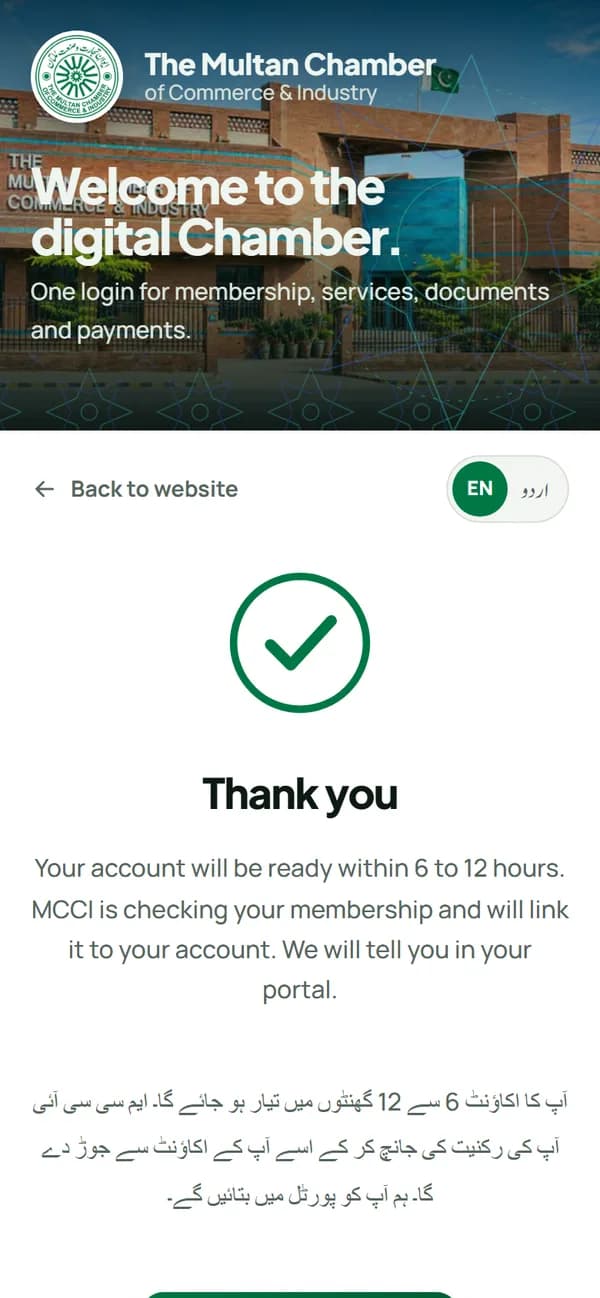
MCCI checks and links your membership
MCCI matches your details with the register and links your account, usually within 6 to 12 hours. You will be told in your portal.
Step 5
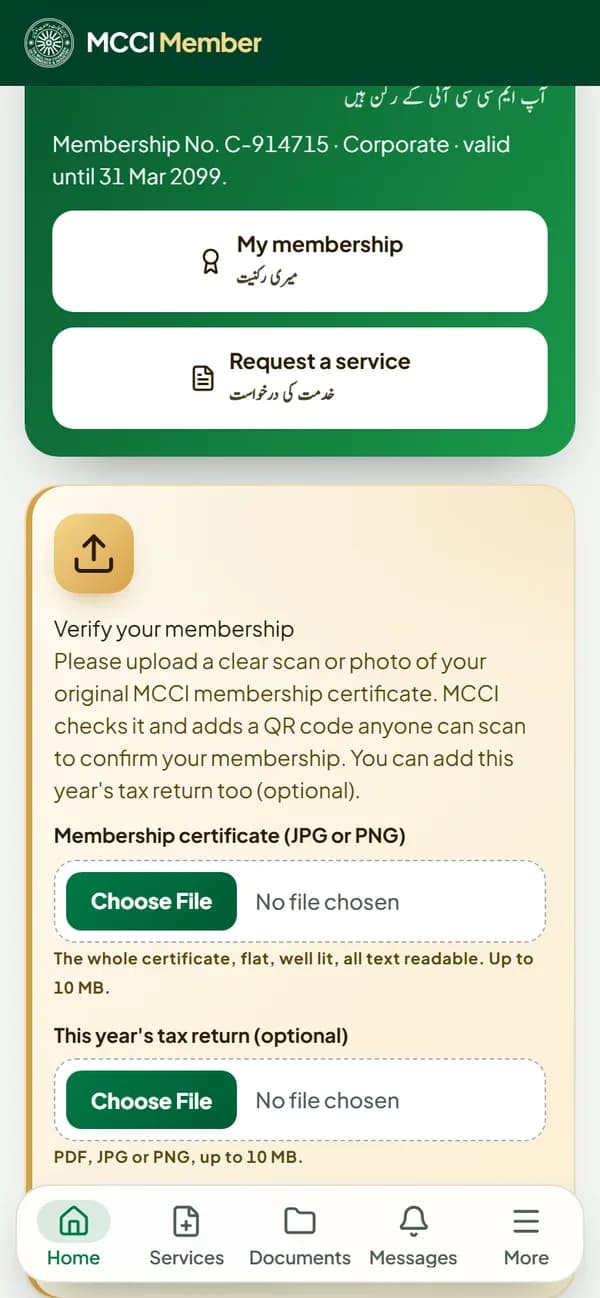
Upload your membership certificate
On your home page, upload a clear photo or scan of your original MCCI certificate. MCCI verifies it and adds a QR code anyone can scan. Nothing else is blocked while you do this.
Did MCCI email you an invitation? Open the link in that email instead: your account is connected at once.
Guide 3
Request a service
For members: visa recommendation letters, Certificate of Origin attestation, document attestation and more. MCCI replies within 24 hours.
Step 1
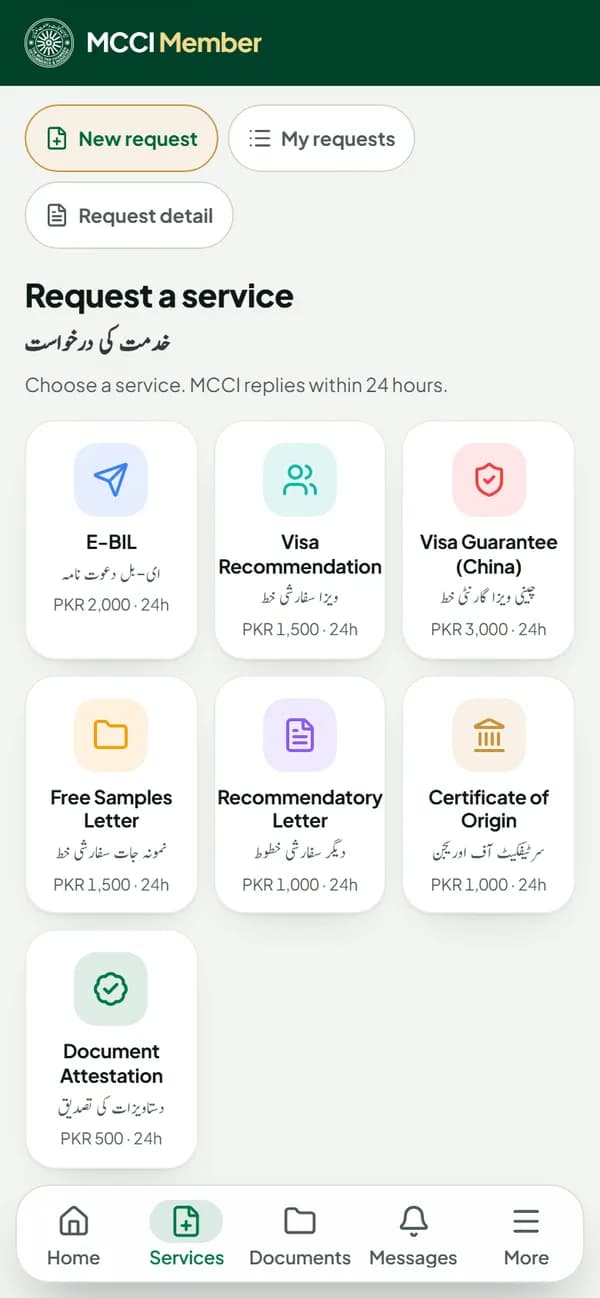
Choose the service
In your portal open Services and press the service you need. Its fee and documents are shown on the card.
Step 2
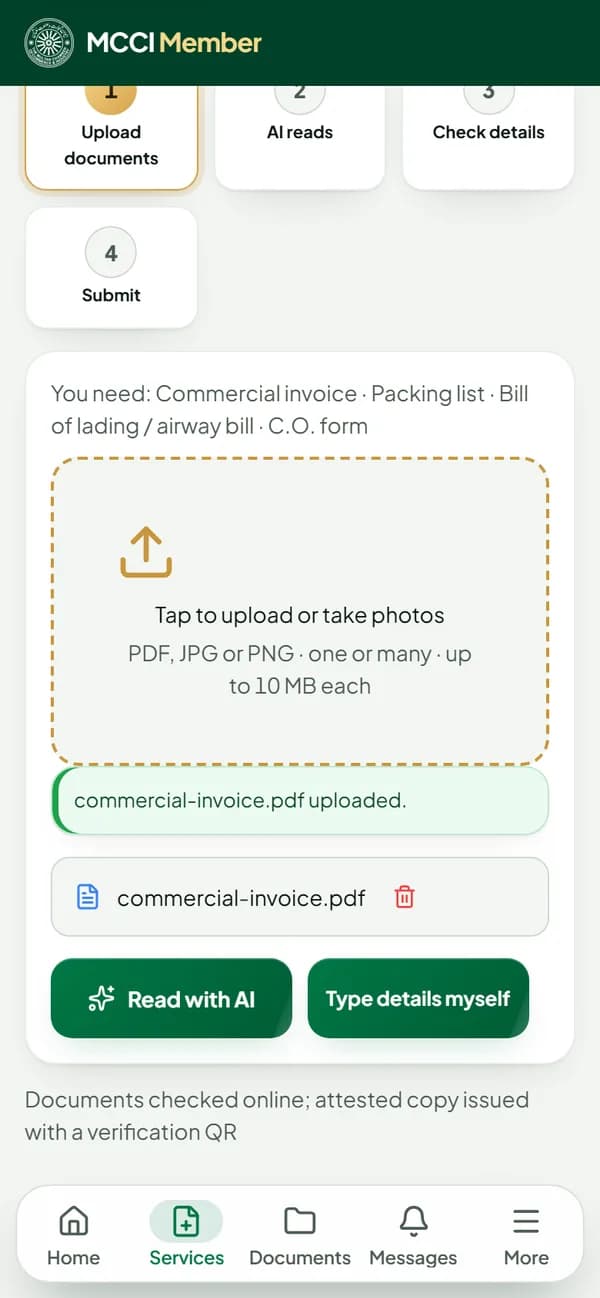
Upload the documents
Upload the papers listed for that service, as photos or PDFs, one or many.
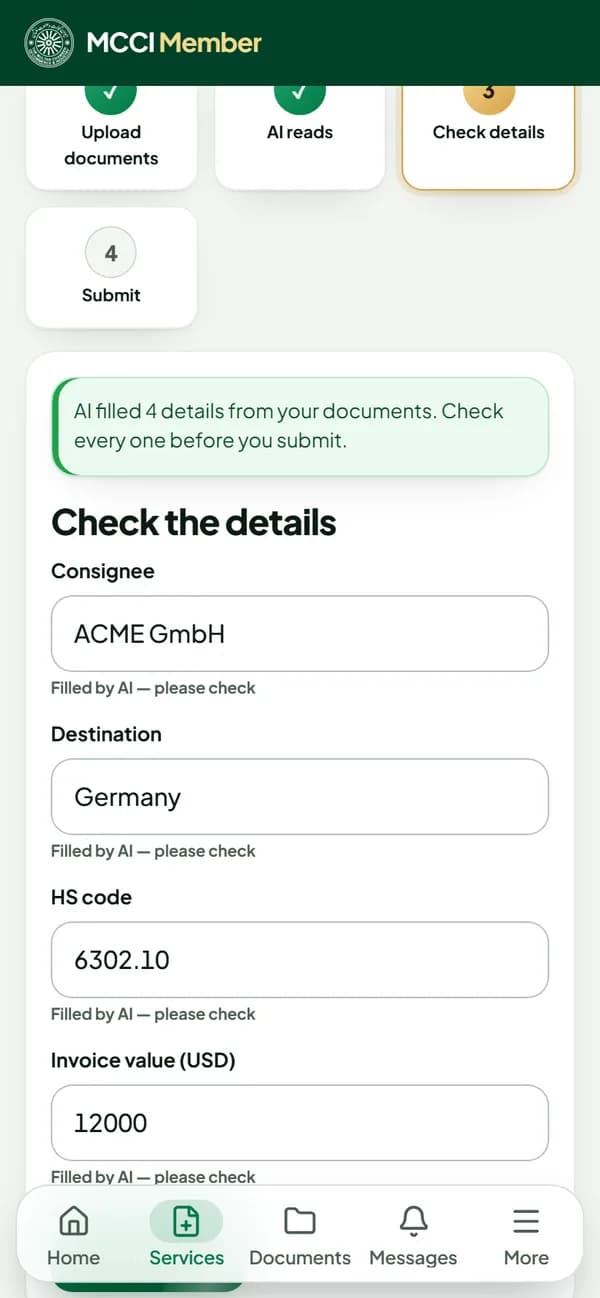
Step 3
Check the details
Press "Read with AI" to fill the details from your documents, or type them yourself. If AI cannot see a required paper, it tells you which one.
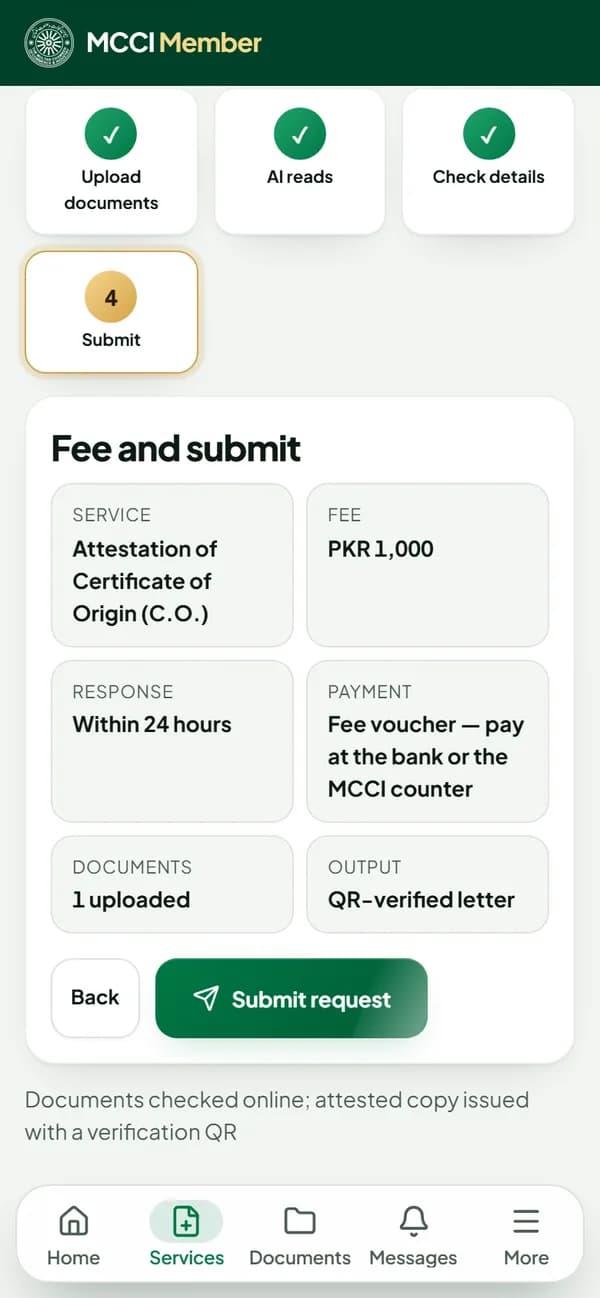
Step 4
See the fee and submit
Check the summary and the fee, then submit. You get a request number at once.
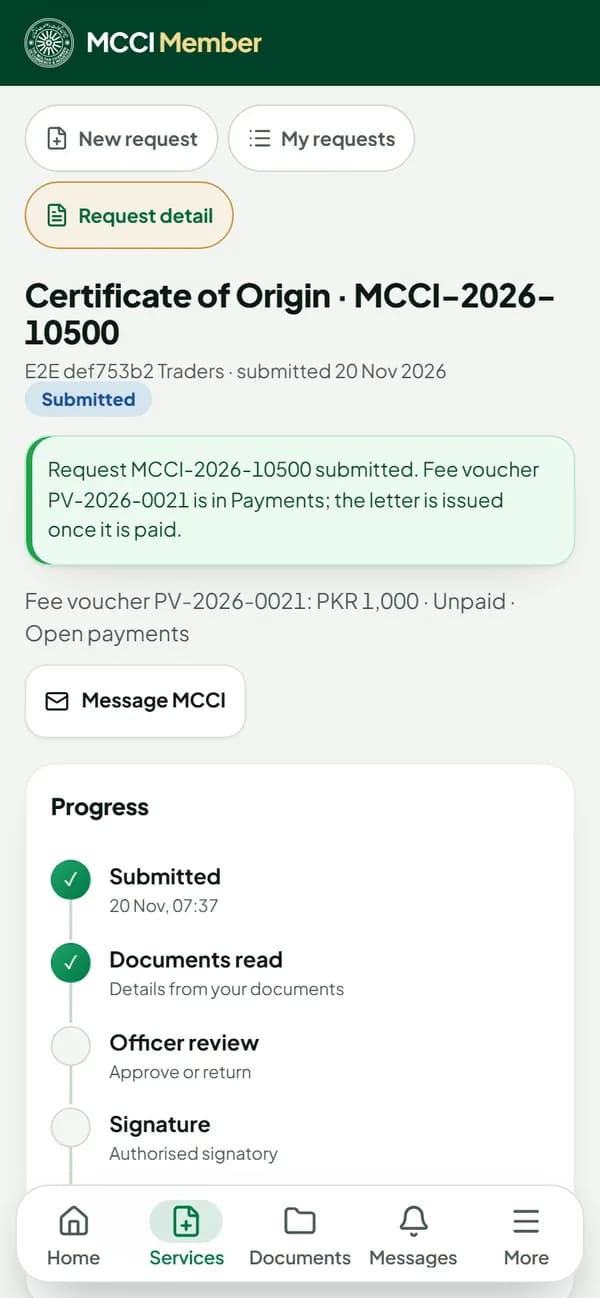
Step 5
Track it and download your letter
Follow your request step by step. If MCCI needs a correction it tells you what; when it is issued, download the letter with its QR code.
Need help?
We are here to help
No WhatsApp on your number
On Sign Up press "Get the code by email instead" and type your email.
Forgot your password
On Sign In press "Forgot password?" and type your mobile number, member ID or email. The code comes on WhatsApp.
Call the Membership Desk
Monday to Saturday, 9 am to 5 pm: 061-4543530 or 061-4517087.
Visit the Chamber
Our staff can help you apply at the MCCI office. Bring your documents.